Extend Flight Simulator with a companion dashboard for iPhone, iPad and Mac.
Avionics Buddy connects to MSFS24 through a local Windows bridge and brings live aircraft telemetry, maps, gauges, airports, runways and approach helpers to your devices — without leaving the simulator window on your PC.


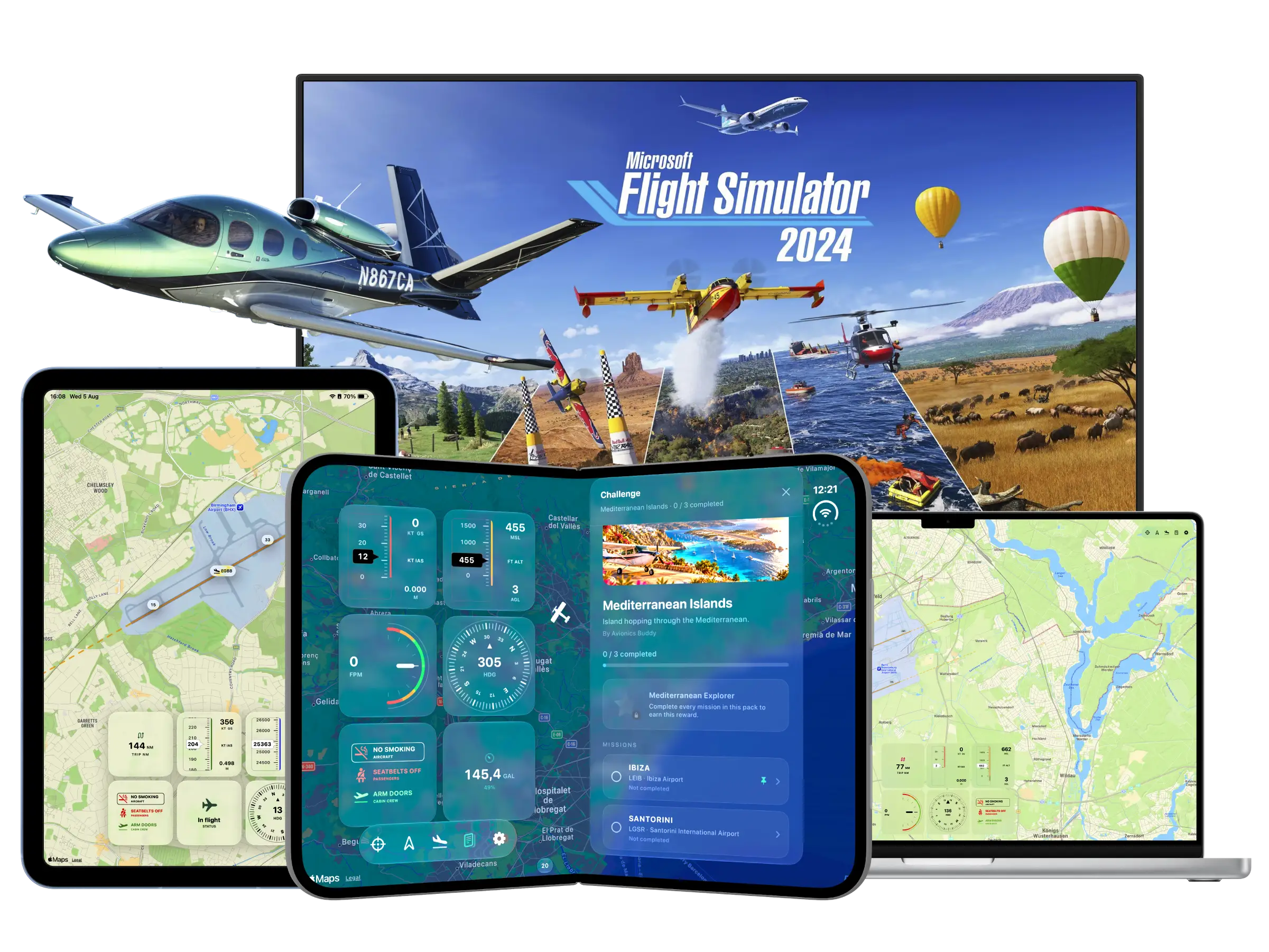
Monitor everything on your Apple device and never leave the simulator window on your PC.
A full cockpit companion dashboard designed to extend Microsoft Flight Simulator — clean, fast and local.
Live Telemetry
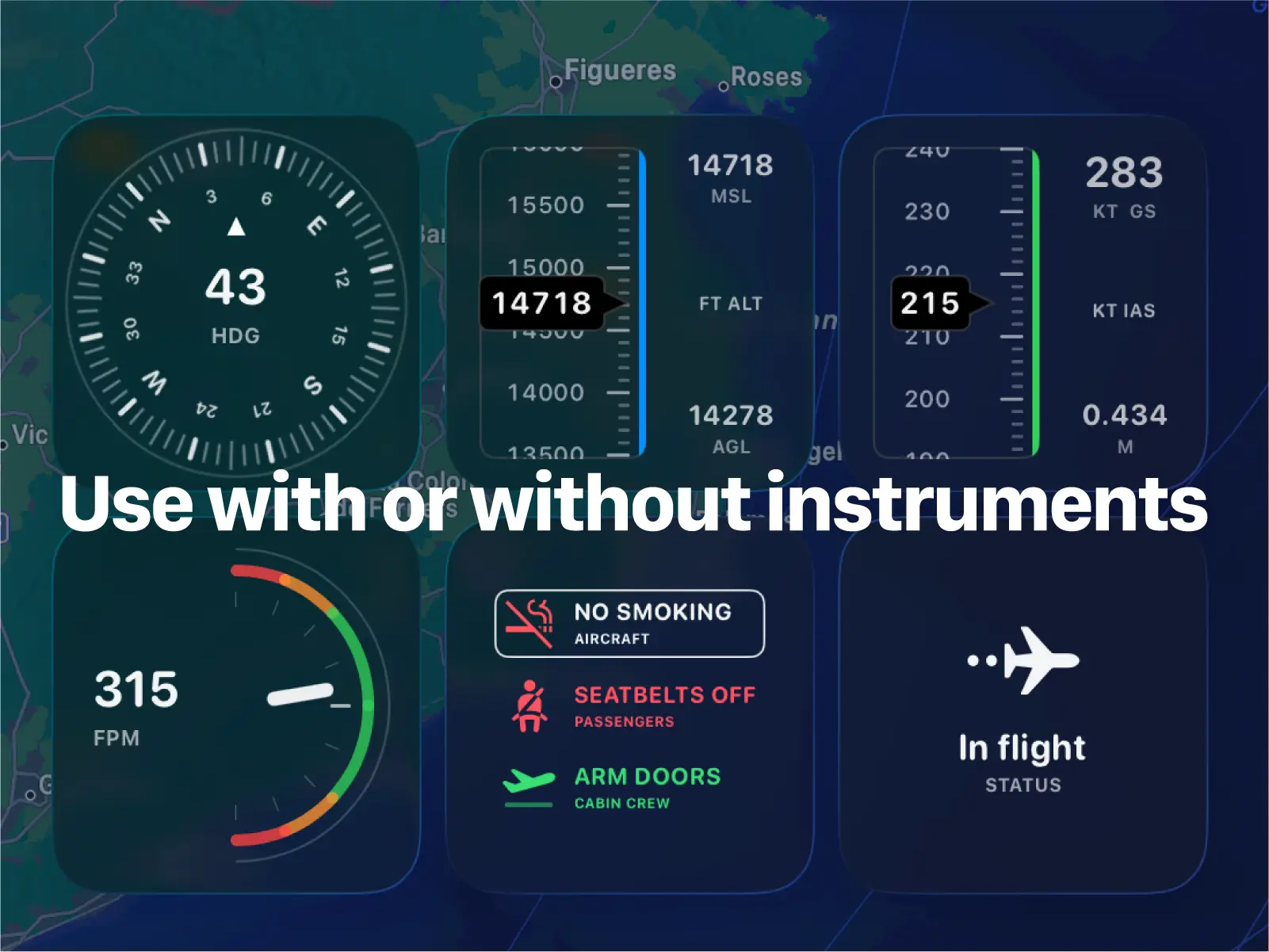
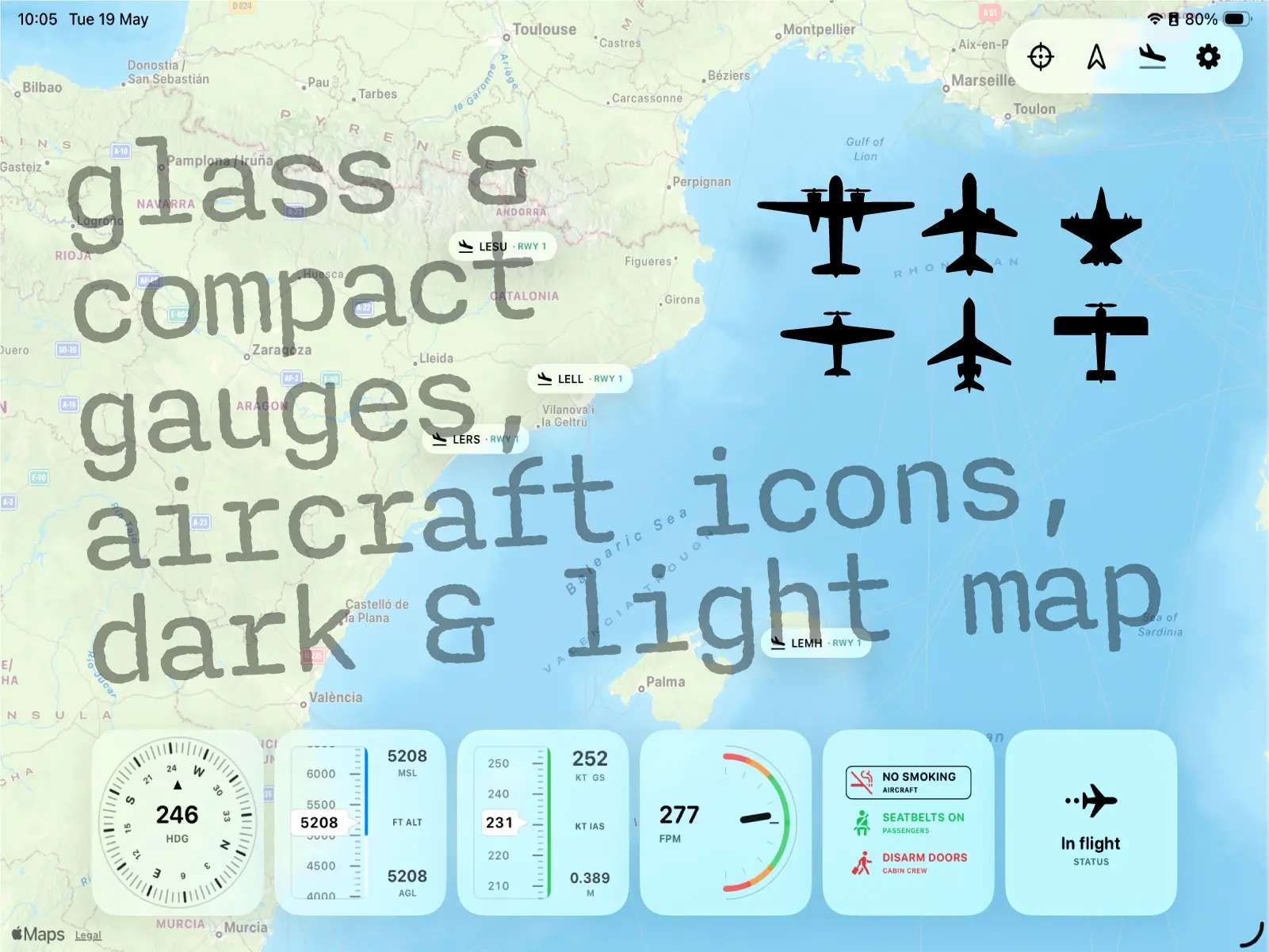
Altitude, airspeed, heading, vertical speed, and dozens of other MSFS variables streamed live to your device.
Moving Map
Track your aircraft position on a real map with airport overlays, runway markers, and approach paths.
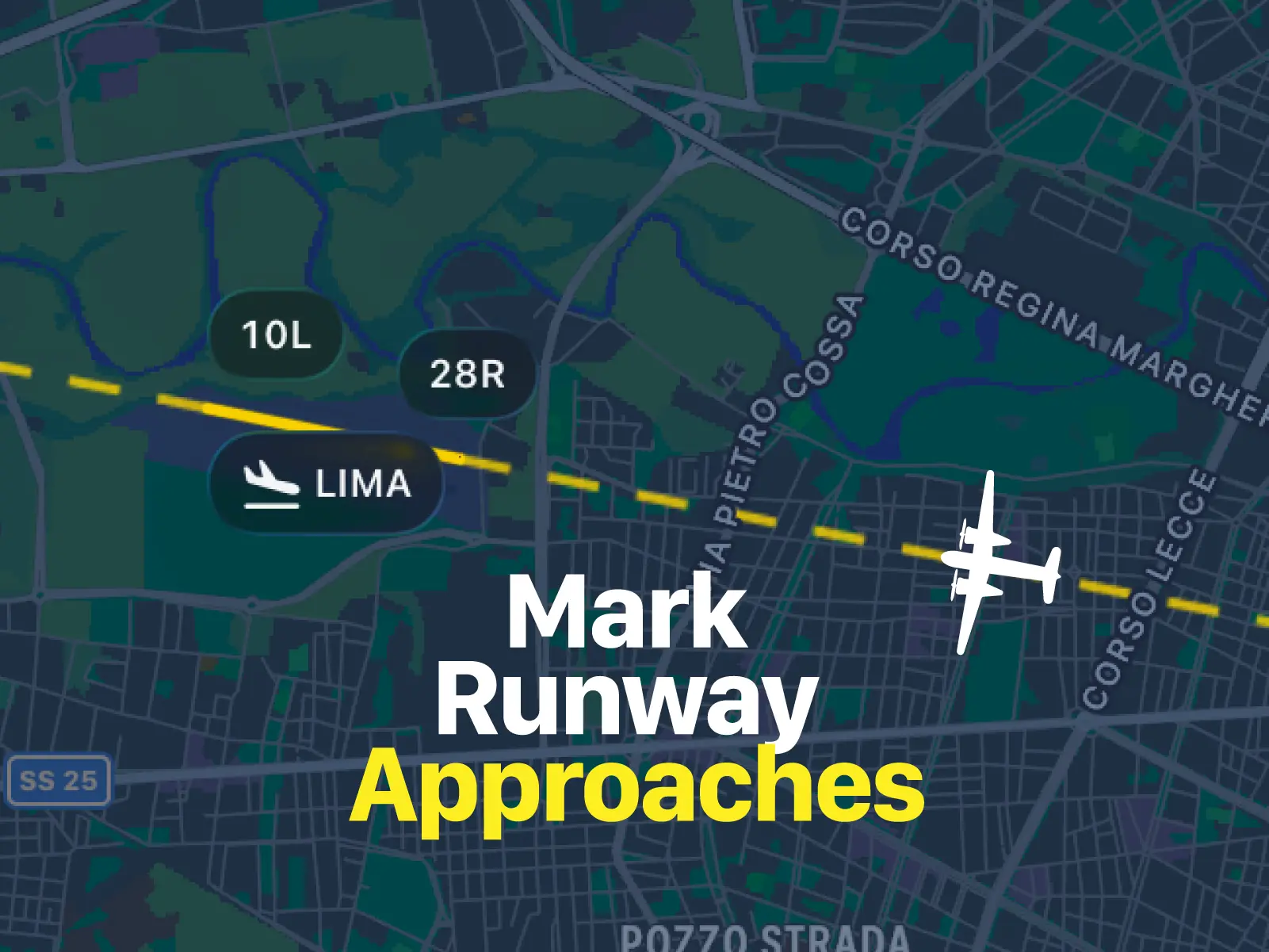
Runway Approach Helper
Visual glide path and runway alignment guides for cleaner approaches and smoother landings.
Gauges & Instruments
Cockpit-inspired instrument panels showing the data you want without cluttering your main display.
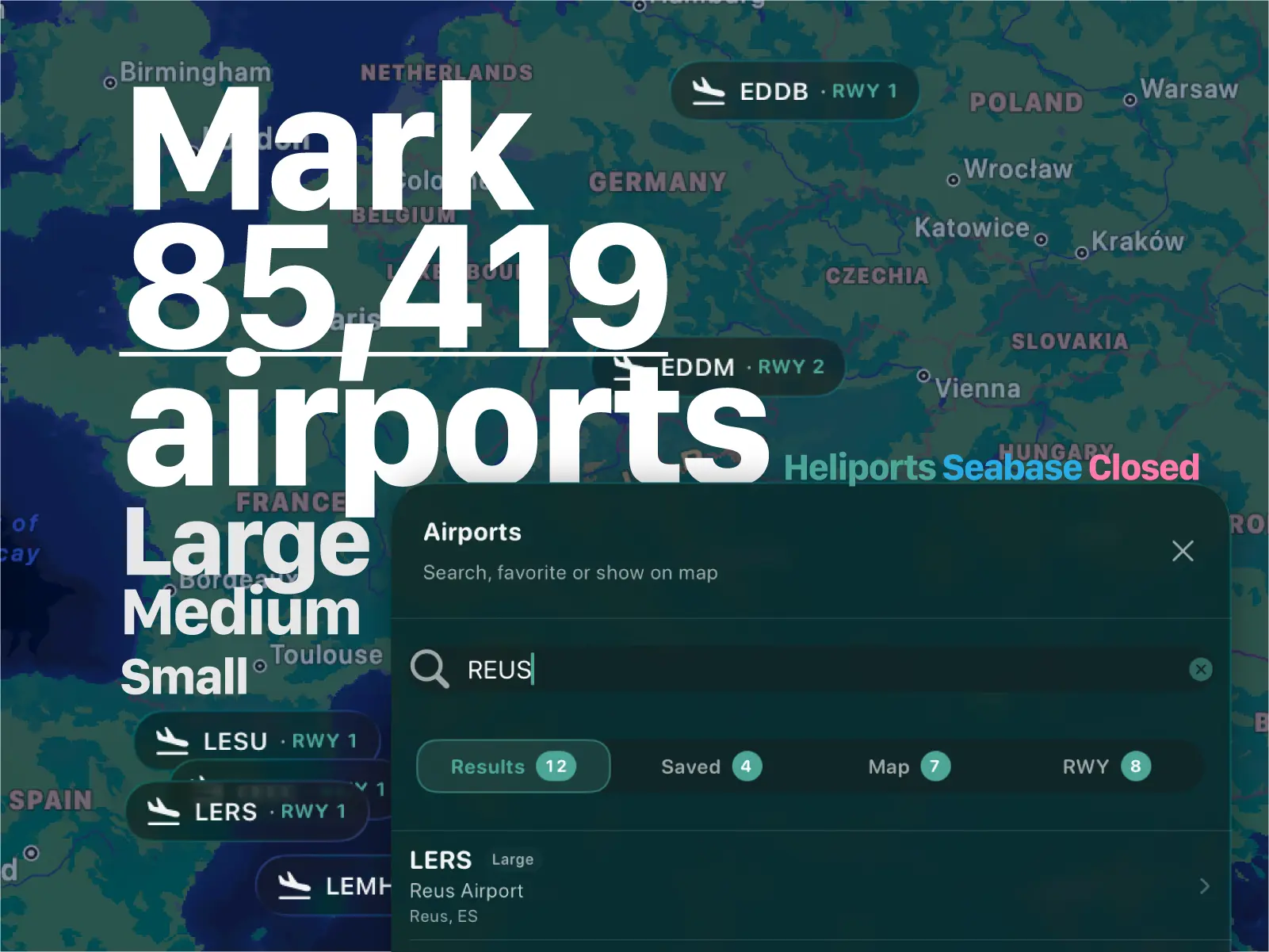
Airport Browser
Search airports, mark them, view runway details, and jump to any airport directly from your second screen.
Local Network Only
Everything happens on your home network via WebSocket. No cloud, no account, no latency from internet routing.
Up and running in three steps.
No account. No configuration files. Just download, scan, and fly.
Start the bridge
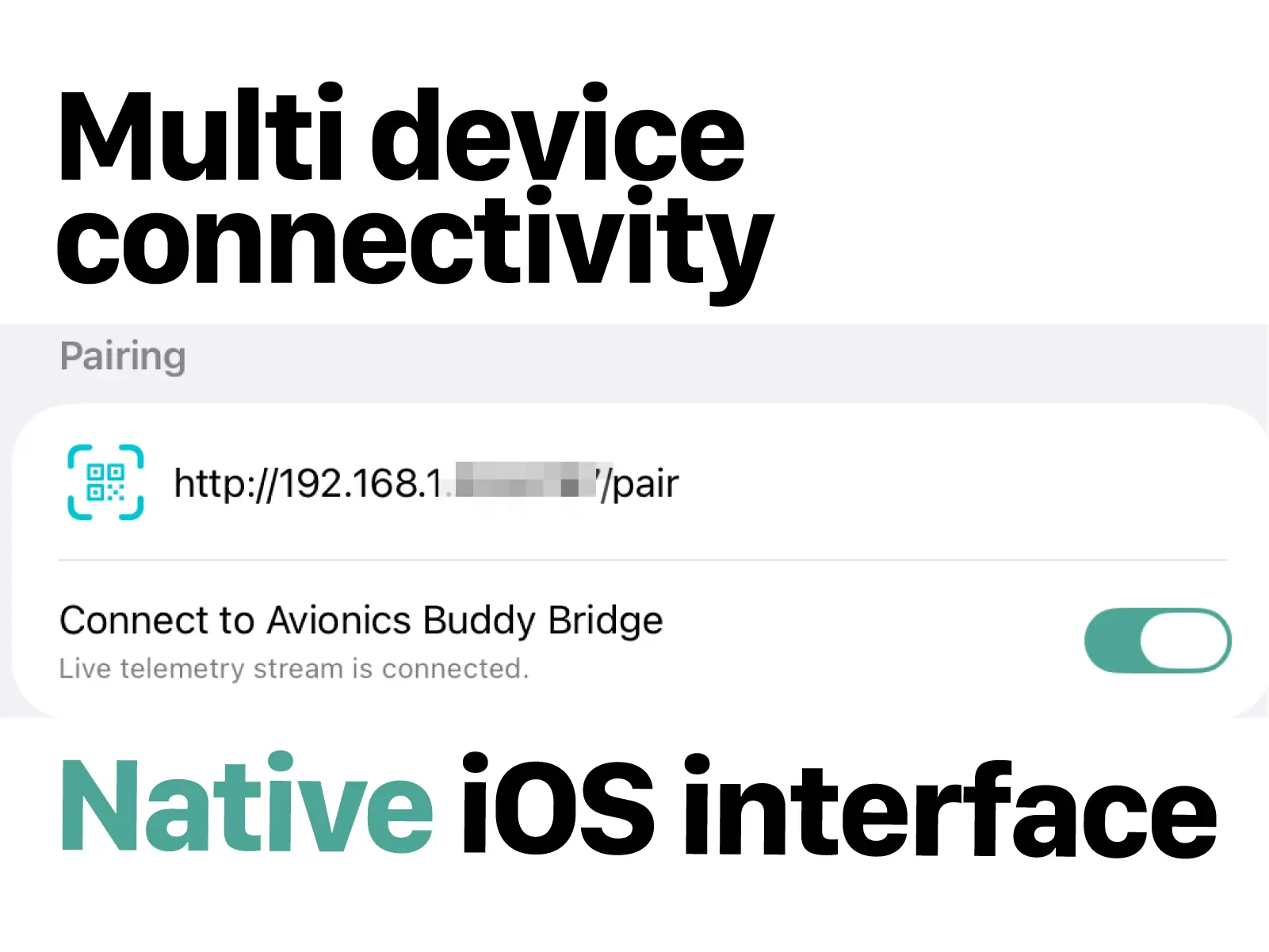
Launch Microsoft Flight Simulator, then start Avionics Buddy Bridge on your PC. The bridge window shows a QR code.
Scan and pair
Open Avionics Buddy on your iPhone or iPad and scan the QR code displayed by the bridge. Pairing takes seconds.
Fly with live data
Your device becomes a live companion dashboard — telemetry, map, gauges, airports and approach helpers update in real time.
When Avionics Buddy Bridge is running on your PC, it shows a QR code and a pairing link. Scan the QR code from Avionics Buddy, or copy the pairing link and paste it manually in the app.
Avionics Buddy Bridge for Windows
A lightweight Windows app that reads live telemetry from MSFS via SimConnect and streams it to your iPhone or iPad over your local network.
Avionics Buddy Bridge
Extract the ZIP and run the executable "AvionicsBuddyBridge.exe". The bridge window will appear showing a QR code ready to scan.
Free download · ZIP archive · Run without installing
PC Requirements
- Windows 10 or later
- Microsoft Flight Simulator 2024
- Avionics Buddy Bridge running on the same local network
- iPhone or iPad with Avionics Buddy
- Local network access allowed (same Wi-Fi)
 Windows 10 or later
 Download. Import. Fly.
Download a .avmission pack, then open Avionics Buddy and go to Challenges → + Add Mission Pack to import it. Fly the challenge in Microsoft Flight Simulator and Avionics Buddy automatically tracks your landings, progress and medals.

Bush Flying Highland Route
A seven-stage bush-flying route across Papua New Guinea, starting at remote Hewa, crossing the Highlands and finishing on the tropical coast at Madang.


Chinese Mega Cities Challenge
Explore China's spectacular megacities with landings in Shanghai, Chongqing and Shenzhen.


Conspiracy Challenge
Fly into the unknown and complete a mysterious challenge around some of America's most secretive skies.

Built for serious sim pilots.
Whether you're training for IFR procedures or exploring the world, Avionics Buddy adds a focused second screen to your setup.
Multi-screen cockpit builds
Connect your iPad and iPhone to the same Windows bridge and turn them into dedicated avionics panels around your sim setup.
Cleaner approaches and landings
Use your second screen to monitor heading, altitude, vertical speed, runway alignment and approach helpers while your main display stays focused on the cockpit view.
Keep an eye on long flights
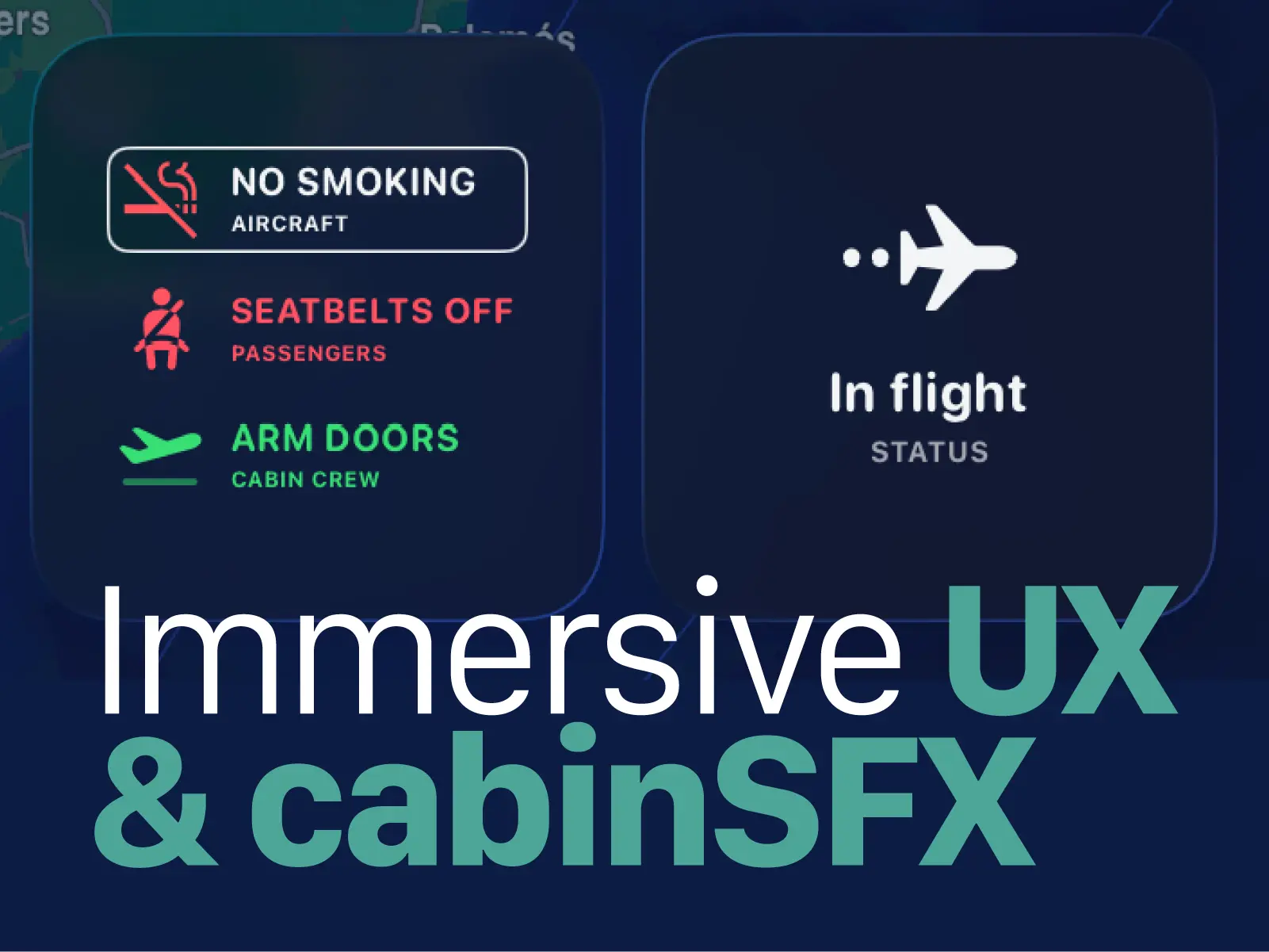
Let your sim keep flying while you move around the house — keep altitude, heading, position and flight status visible on your iPhone or iPad.
Casual exploration flights
Browse airports and plan your next stop without pausing or alt-tabbing out of MSFS.
Rate the Landings
Follow short Microsoft Flight Simulator landing attempts, rate the approaches, and suggest the next airport. Avionics Buddy appears in the cockpit flow as the live second-screen dashboard.




Common setup questions.
Most issues come down to network isolation or a missed firewall prompt. These answers cover the usual suspects.
Bridge not found
QR code does not connect
Windows Firewall blocking the bridge
PC and device not on the same Wi-Fi
VPN or network isolation active
MSFS is not running
No telemetry coming through
If you're still stuck, send a message and we'll help you get it working.
Your data stays on your network.
No accounts, no cloud, no telemetry sent anywhere. Avionics Buddy works entirely on your local network.
Works locally on your network
All telemetry stays between your PC and your device. Nothing leaves your local network.
No user account required
No sign-up, no login, no email address needed to use Avionics Buddy.
No cloud telemetry
Flight data is never uploaded to any server. It goes directly from MSFS to your device over WebSocket.
Preferences stored on device
Pairing data and app preferences are stored locally on your iPhone or iPad only.
Airport data stored locally
Airport and runway preferences are stored on your device. No data is sent to us.
No personal data sold
We do not collect, share, or sell any personal information. Ever.
Avionics Buddy is designed for Microsoft Flight Simulator entertainment use only. It is not intended for real-world navigation, flight training, flight planning, or any operational aviation use. Airport and runway data may be incomplete or inaccurate. Not affiliated with or endorsed by Microsoft, Asobo Studio, Working Title, OurAirports, or any aircraft manufacturer. Microsoft Flight Simulator, SimConnect, and related names are trademarks of their respective owners.